Garmin Connect has no lap editor – here's what to do instead
Melts down to Garmin Connect can show your laps but can't edit them – there's no lap editor, by design. To fix an accidental, late, or autolap split, export the activity as a .fit file and open it in ButterLaps, a free browser-based lap editor. Drag, add, or merge the lap markers, then download a corrected .fit. Nothing to install, no account, and your file never leaves your device. Fix your laps now →
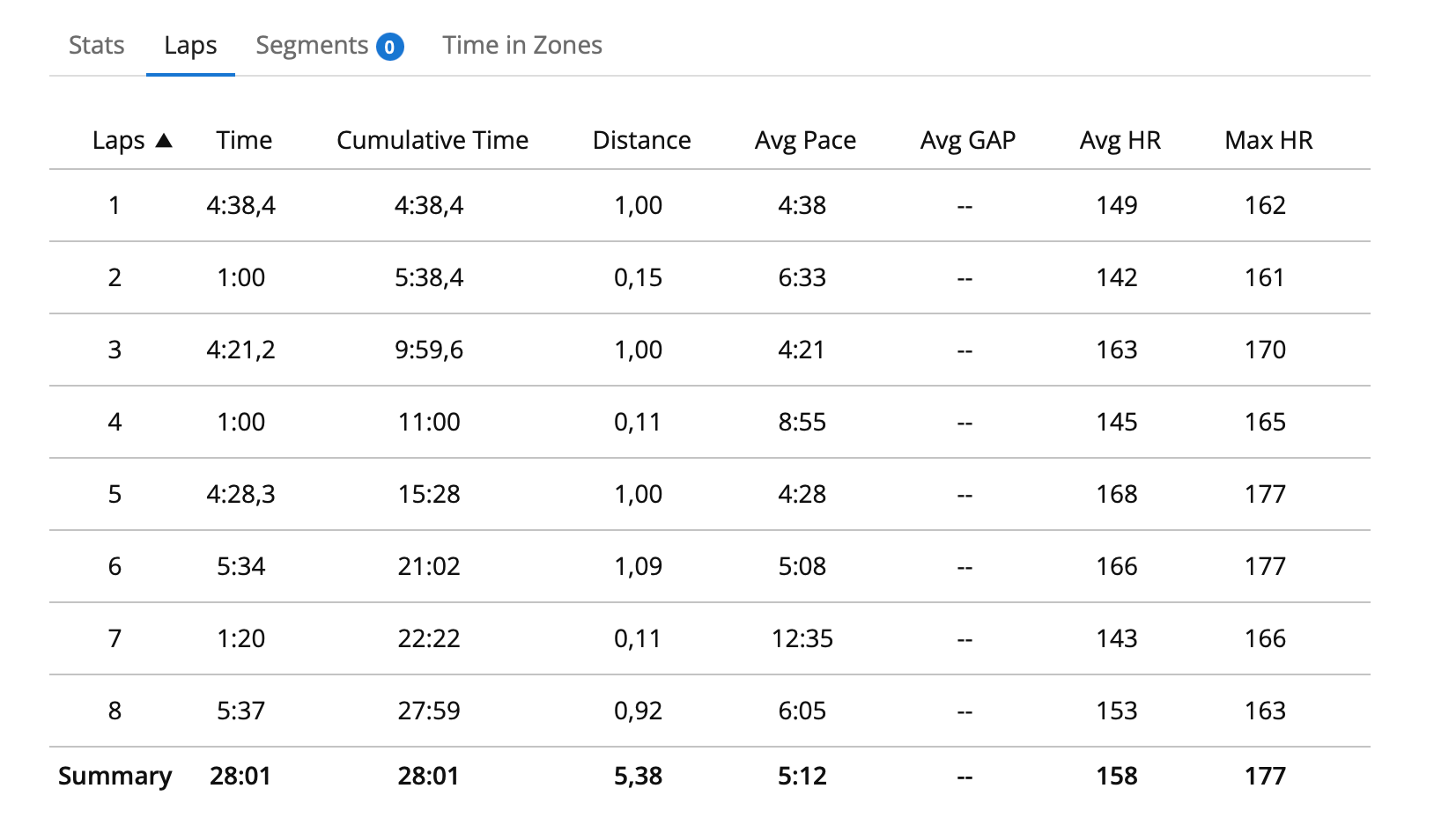
You finish a workout, open it in Garmin Connect, and the lap table is wrong – a stray press split a rep in half, or autolap cut the climb at the wrong spot. You go looking for an edit button. There isn't one. Garmin Connect lets you read the lap table, not change it – the numbers are fixed the moment the file is saved.
The good news: the fix takes a couple of minutes, and it all happens in your browser.
What goes wrong with laps
A few things, all common:
- Accidental press mid-effort. You bump the lap button during a hard rep and a single interval becomes two ragged halves. Newer watches show a brief undo prompt afterward, but mid-effort it's easy to miss – and once it's gone, the useless split sticks.
- Late or early press in a track or interval session. You finish a hard rep and press lap a few seconds late, after you've already started slowing down – those slow seconds get folded into the work lap, dragging its average pace below what you actually ran during the effort.
- Autolap at the wrong distance. Your watch is set to autolap every 1 km, but you wanted splits by climb, by race section, or by 5 km block. The data is all there; the boundaries just land in the wrong places.
None of these touch your GPS track, heart rate, or power. The recording is good. Only the lap markers are off – and those are exactly what Garmin Connect won't let you change.
The fix
The activity file itself – the .fit – holds everything your watch recorded, second by second. Lap boundaries are just markers inside it. If you can edit those markers without disturbing anything else, the laps are fixed. That's what ButterLaps does.
Three steps:
- Export the original
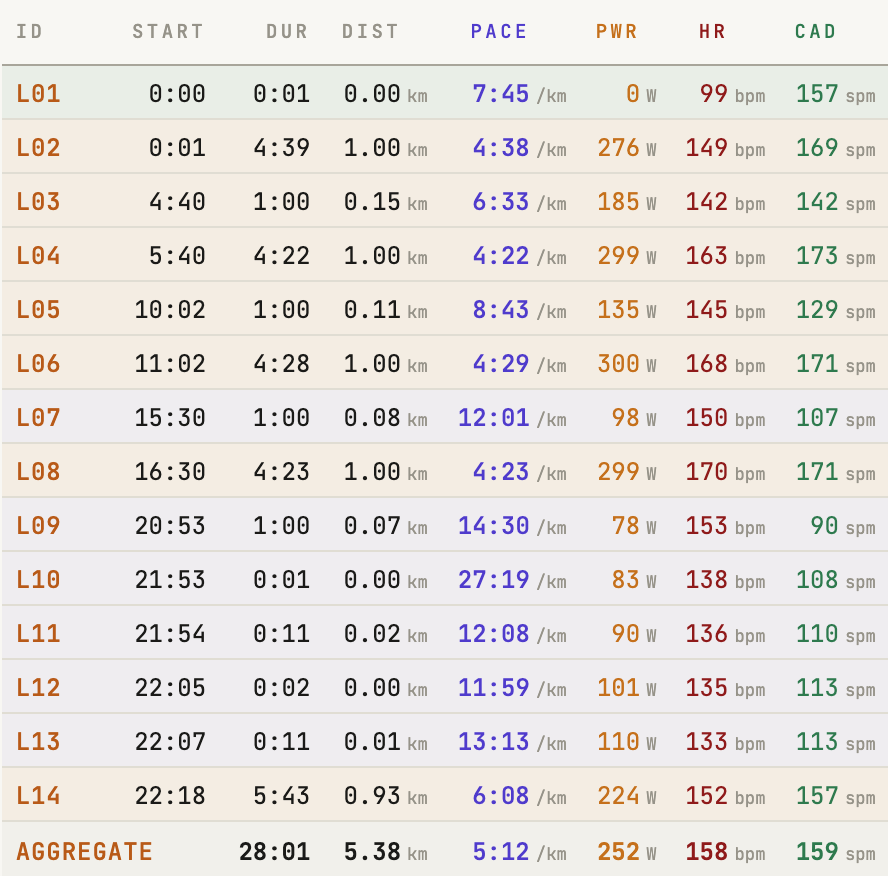
.fitfrom Garmin Connect. In a desktop browser (the phone app can't do this), open the activity, click the gear icon top-right, and choose Export File. That's the original.fit– skip GPX and TCX, which are re-encoded copies. - Drop that file into ButterLaps. The activity appears on an interactive chart with your main metrics plotted. Lap boundaries are draggable markers: drag one to move it, double-click to add a split, and merge two laps either by clicking MERGE between them in the table or dropping a marker onto its neighbour on the chart. The lap table updates live as you go, and nothing's permanent – undo, redo, clear all, or reset to the original at any point.
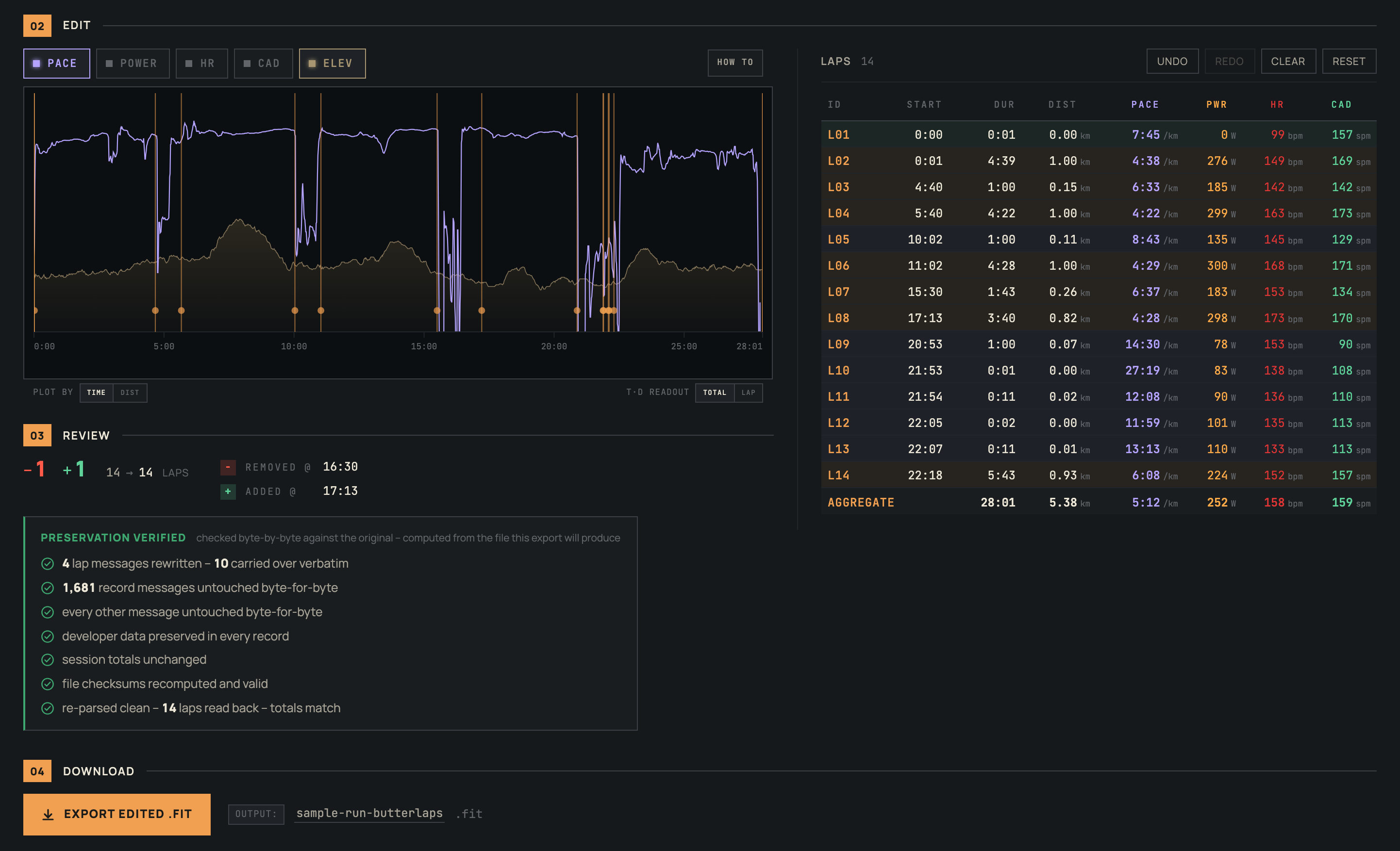
- Download the corrected file. Before you export, a summary shows exactly which boundaries changed. Download the new
.fit– it's ready to re-import into wherever you keep track of your training history.
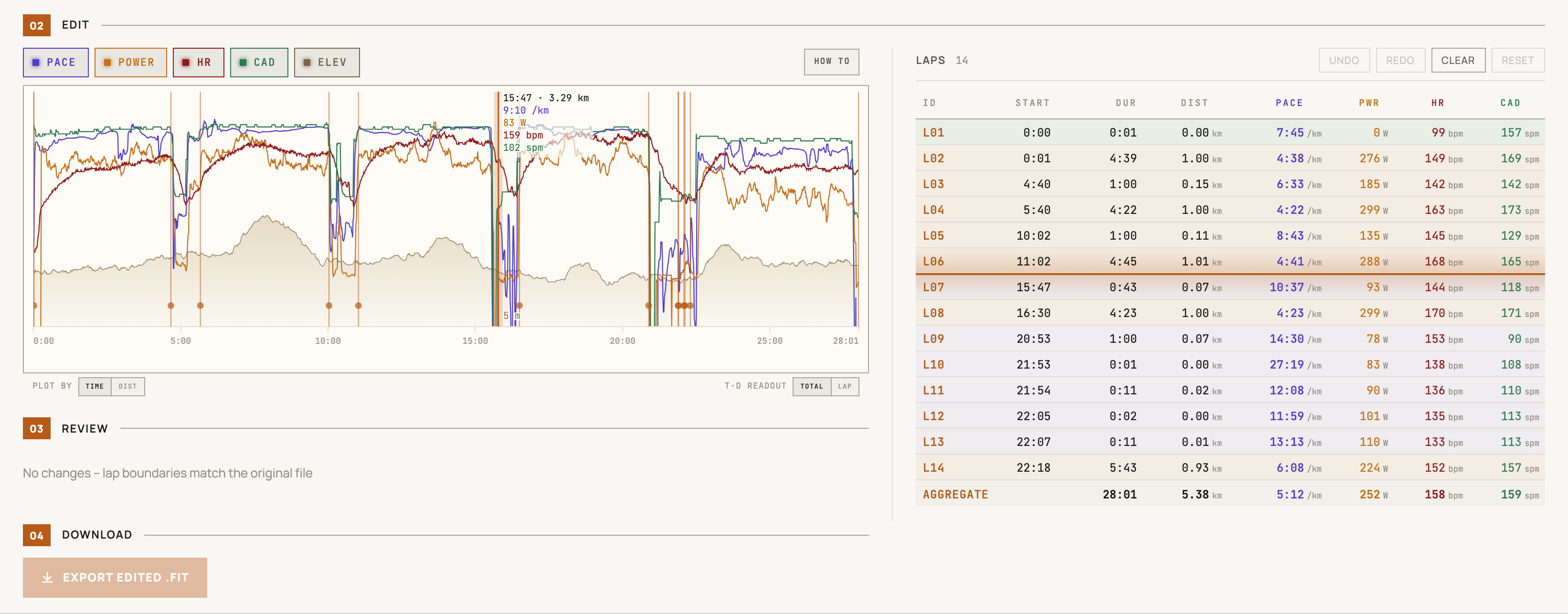
It runs entirely in your browser – your file never leaves your device. The export touches only the lap records. Everything else – your GPS track, sensor data, device metadata, and any unknown or vendor-specific messages – passes through byte-for-byte. Per-lap summaries are recalculated for the new boundaries wherever possible, including common developer fields such as Stryd's. Each one is checked against your device's own totals first, and only written if they agree closely enough; otherwise the field is left blank rather than carrying a stale number – unless it's a constant value repeated on every lap, like a pod's configuration setting rather than a per-lap measurement, in which case that value just carries forward unchanged. Most platforms recompute these summaries from the raw data anyway, so it's rarely something you'd notice. The rules ButterLaps edits by →
A note about re-importing
This is the part most tools skip, so here it is plainly. Re-uploading to Garmin Connect or Strava means deleting the original activity first – both treat the resubmission as a duplicate otherwise. That's a non-issue if you catch the lap problem early, before anyone's liked or commented; the only time it actually costs you something is fixing an activity that's been sitting for a while, since you'll lose any edits, likes, kudos, and comments attached to it.
There's also a Garmin-specific quirk: even after re-uploading, the activity may still show its original Intervals view instead of your corrected laps, because recent Garmin watches store that interval data as a layer separate from the laps. ButterLaps preserves it by default; an export option clears it so Garmin Connect rebuilds the view from your edited laps. Why laps and intervals differ →
Here's the turn, though: ButterLaps is useful even if you never re-upload. A lot of the value is in looking at the run, not just re-filing it. Separate a long climb from the descent that followed. Split long intervals down the middle to spot cardiac drift. Take a track session where the laps drifted off the reps and reframe it so the splits finally line up with what you actually ran. None of that requires saving anything anywhere – you load the file, see it the way you meant to, and move on. Export only when you want the corrected file in hand.
Recorded on an iPhone or Apple Watch?
Everything above applies here too – if your activity came from an iPhone or Apple Watch rather than a Garmin, you just need a way to get a .fit out first. Three options, all of which drop straight into ButterLaps:
- Native Apple Workout app, via HealthFit. Workouts recorded with Apple's built-in app live in Apple Health. HealthFit – a superb third-party app – reads Apple Health and exports a
.fit. If you record with the stock app, this is the path. - WorkOutDoors. A popular alternative among data-minded runners and cyclists. It records on your Apple Watch in place of the native app, and exports
.fitdirectly. - Stryd. If you run with a Stryd power pod, its app records the run and lets you download the
.fit.
All three are phone apps, and ButterLaps runs in your phone browser too – so unlike the Garmin route, the whole fix can happen on your phone, no desktop needed.
ButterLaps supports running, cycling, walking, and hiking. It doesn't handle multisport or swimming.
Free, in your browser, no account – made by one runner who got tired of read-only lap tables.