Fixing laps when the workout didn’t go to plan
Melts down to Structured-workout laps follow the plan you loaded, not the run you actually ran. When you go off-script – or forget to update the workout before pressing start – export the activity as a .fit file and open it in ButterLaps, a free browser-based lap editor: drag, add, or merge the boundaries until the laps match the efforts, then download the corrected file. Step names and intensities carry over, and the file stays in your browser the whole time. Fix your laps now →
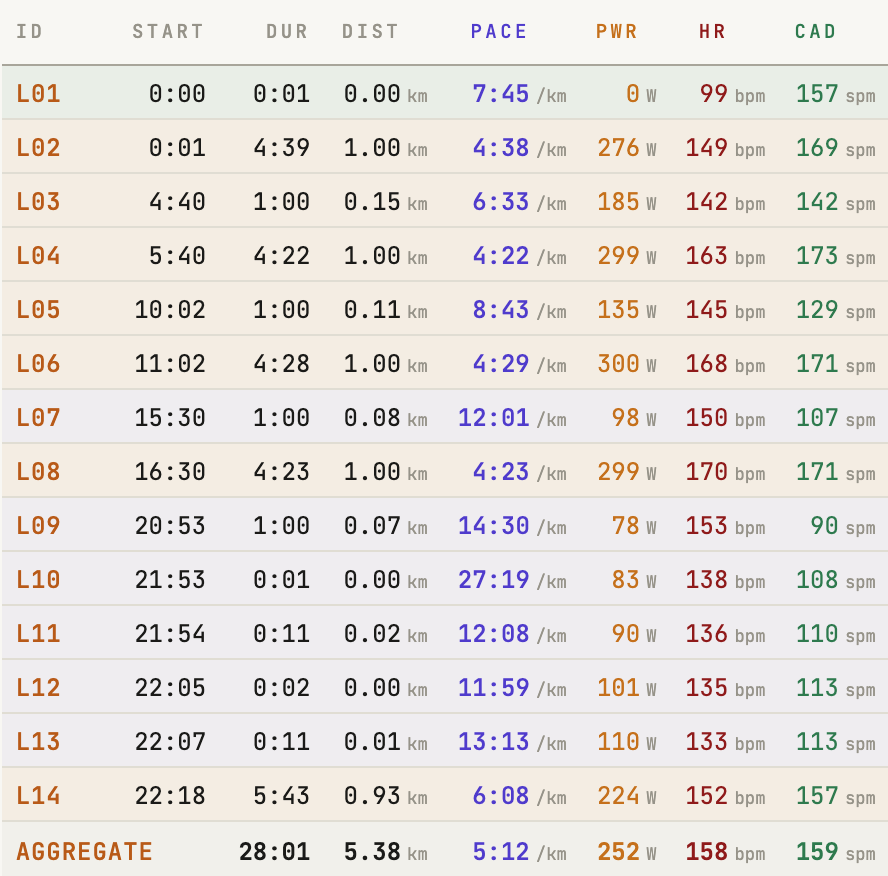
This post exists because of my critical-power test. The workout template still had a 3-minute effort step I’d meant to change to 1 kilometre, and I only remembered mid-rep – the watch chirped the step over while my legs were very much still running. I finished the kilometre anyway. The watch, faithful to its script, was already deep into “recovery”.
Nothing was lost – every second is in the file – but the test was sliced wrong. The work lap held three minutes of a longer effort, the tail of the kilometre sat at the front of the recovery lap, and the one thing the session existed to produce – a clean effort to line up against earlier tests – didn’t exist as a lap. Comparing meant arithmetic instead of a glance. And neither Apple Fitness nor Garmin Connect lets you move a lap boundary.
How a plan stops matching a run
- The stale template. You reuse a saved workout and forget to update a step – time where it should be distance, last month’s rep count, an old target. The mismatch is baked in before you leave the house.
- The mid-run rewrite. You feel good and add a rep, cut one short on a rough day, or let the last interval run long because the legs showed up. The efforts are real; the steps just don’t know about them.
- The mistimed advance. A step ends on a button press you made a beat early, a beat late – or didn’t mean to make at all.
In every case the watch recorded the run perfectly and filed it wrong: the boundaries belong to the plan, the effort belongs to you.
Re-cut the laps to the run you ran
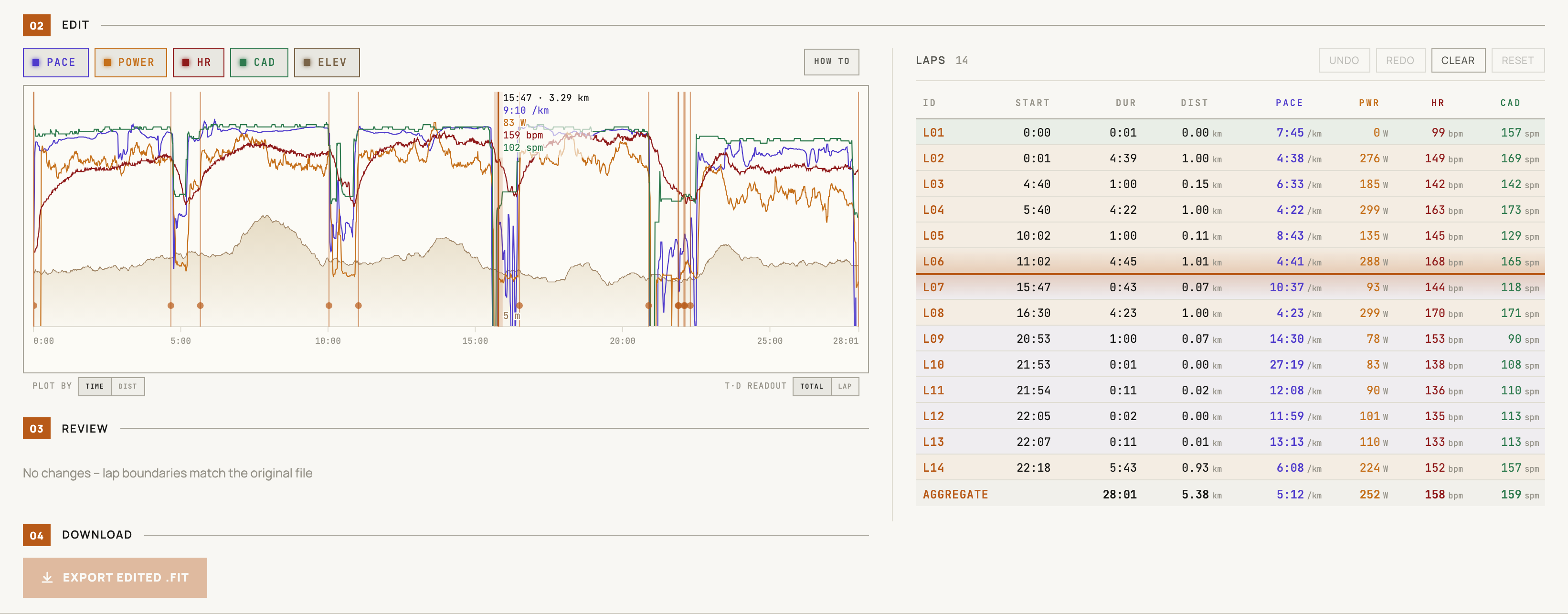
Export the original .fit – from Garmin Connect that’s desktop, gear icon, Export File; from an Apple Watch it’s one share away via HealthFit, WorkOutDoors, or the Stryd app – and drop it into ButterLaps. Each hard effort stands out on the pace and heart-rate chart, so you can see exactly where the plan lost the plot. Drag the work lap’s end boundary to where the effort actually finished – flip the readout to LAP and a tooltip counts up the lap’s distance and time as you drag, so you can land it exactly on 1.00 km. Merge the fragments a shuffled plan left behind, or add the split a skipped step never created. Step names and work/recovery intensities from the original workout carry over to the re-cut laps, so the file still reads as the session it was. Full walkthrough →
Structured workouts are also where Garmin’s Intervals quirk bites hardest: recent watches store the workout’s interval view as its own layer, separate from the laps, so a re-uploaded fix can still show the old slicing. ButterLaps preserves that layer by default; an export option clears it, and Garmin Connect rebuilds the view from your corrected laps. As with any re-upload, delete the original activity first – Garmin Connect and Strava both refuse duplicates. Why laps and intervals differ →
On export, only the lap records are rewritten – the recording itself passes through byte-for-byte, and summaries are recalculated only for the laps you actually changed. The rules ButterLaps edits by →
My test now reads as a kilometre effort alongside the earlier ones, comparable at a glance – which is all the session was for in the first place.
Structured or not, it works for running, cycling, walking, and hiking – multisport and swimming are out of scope.
Free, in your browser, no account – made by one runner who got tired of read-only lap tables.