Fixing interval and track-workout laps on a Garmin
You ran a clean session – 6×1km, or 12×400m on the track – but the splits in Garmin Connect are a mess. The lap markers drifted off the reps: a recovery jog got swallowed into a work interval, or you pressed lap a beat late on every rep and now every split reads slower than you actually ran. The workout was good. The bookkeeping is wrong, and Garmin Connect has no way to fix it.
This is the most common reason interval runners reach for an external tool – and unlike a one-off accidental press, it tends to happen every training week. Here’s the durable fix.
Why interval laps drift
- Manual laps pressed slightly off. A consistent half-second-late press across ten reps biases every work split slow and every recovery split fast. The averages look plausible but they’re all shifted.
- A structured workout you deviated from. You loaded a planned session onto the watch, then cut a rep short, added one, or shuffled the order. The watch still slices the file by the planned boundaries, which no longer match what you ran.
- Autolap fighting your reps. Autolap-by-distance left on during a track session chops the file every 1 km regardless of where your 400s and 800s actually fell.
In every case the second-by-second data is correct. Only the boundaries are off – and boundaries are exactly what you can move.
Re-aligning the laps
Export the .fit from Garmin Connect (desktop, gear icon, Export File) and drop it into ButterLaps. Your pace, heart rate, and cadence chart makes the reps immediately visible – each hard effort is a clear block. Drag boundaries onto the real effort edges, double-click to add a split the watch missed, or drag a marker onto its neighbour to merge a stray one. As you drag, a tooltip follows the marker with live pace, distance, and time – flip the readout to LAP to land each boundary exactly on 400 m of the rep. The per-lap table updates live so you can confirm each rep reads the pace you truly ran it at. Download when the splits line up. Full walkthrough →
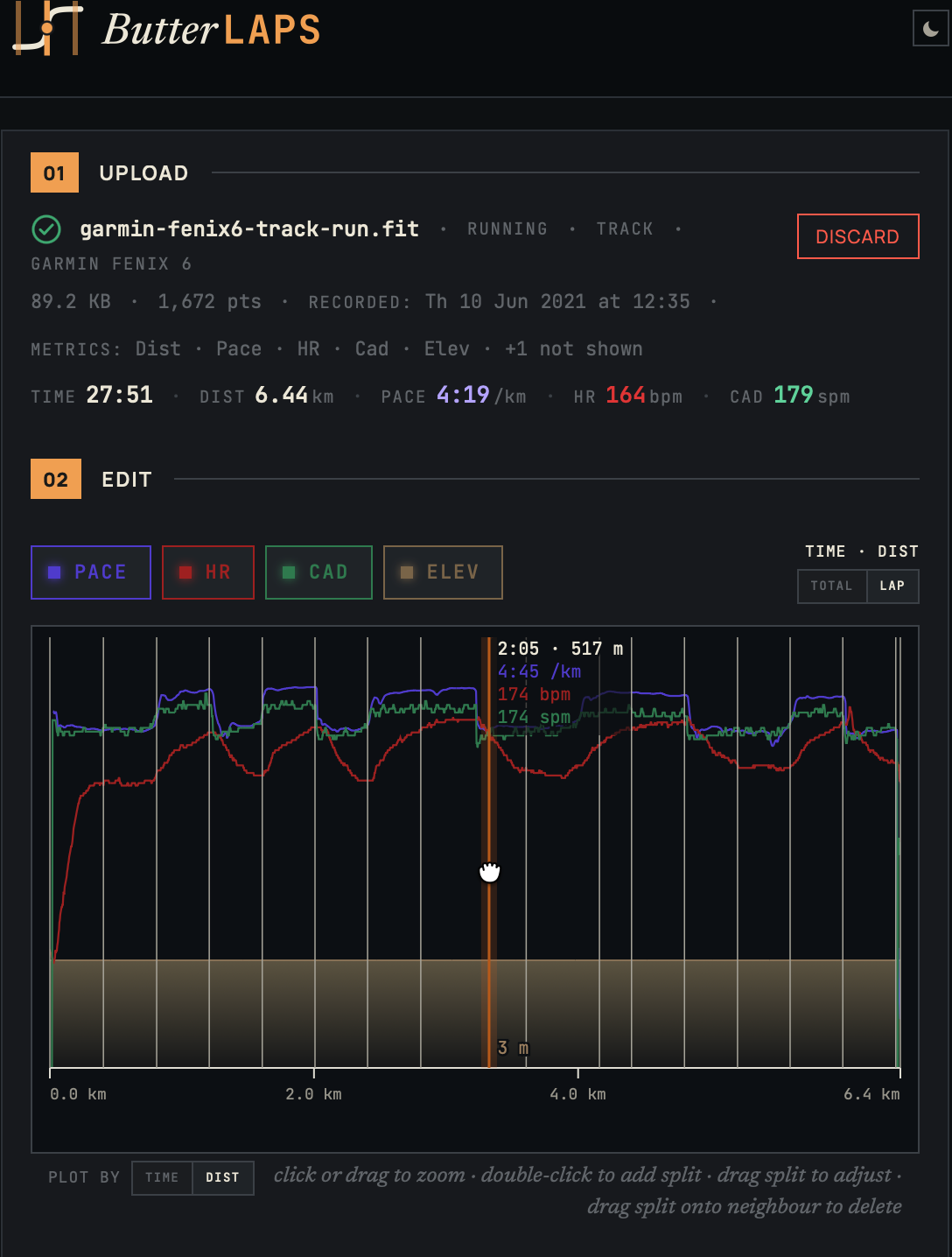
Everything runs in your browser – nothing uploaded, nothing installed. Only the lap records are rewritten on export; your GPS track, every sensor stream, and per-lap pace, distance, and cadence are recalculated from your actual recorded data for the new boundaries.
A Garmin-specific quirk worth knowing
Modern Garmin watches store a structured workout’s intervals as a separate layer from its laps. So even after you fix the laps and re-upload, Garmin Connect may still show the old Intervals view. ButterLaps preserves that layer by default – but there’s an export option that clears the stale interval data, so Garmin Connect rebuilds its interval view from your corrected laps instead. Turn it on when you want the Intervals tab to match what you edited.
And re-uploading means deleting the original activity first – Garmin and Strava both treat a re-import as a duplicate otherwise. For a workout you analyse the same day, that’s no loss.
ButterLaps supports running, cycling, walking, and hiking. It doesn’t handle multisport or swimming.
No account, no signup, nothing to install – it opens in your browser.